
About JAC website multilingualization
The JAC website uses AI automatic translation (machine translation). Because it is machine translation, the translation may not always be accurate.
About the automatic translation (machine translation) function
- The website is automatically translated (machine translated) according to the language settings of the device you are using to view the website.
- To change the language, open the language selection panel from the Language button in the header and select the language.
- Some proper nouns may not be translated correctly.
- Some pages are not automatically translated. PDFs are not translated.
- Links to external sites will not be translated.
Note
- Please enable JavaScript when using this function.
- This function may not be available in some browsers or viewing environments.




We provide multilingual content through machine translation. Translation accuracy is not 100%. About the multilingualization of the JAC website
I don't understand... I'm in trouble... If that happens, come talk to us!

-
First, check the FAQ!FAQ
(FAQ) - メールで問い合わせる
-
For Indonesian people click here

-
We provide multilingual content through machine translation. Translation accuracy is not 100%. About the multilingualization of the JAC website



Release date: November 29, 2024
Check your messages
The smartphone app "JAC Members" allows you to check messages sent to you by JAC.
Depending on the message, you may be able to reply.
How to check messages
To check messages received in the "JAC Members" app, please follow the steps below.
Step 1.
Log in to "JAC Members"
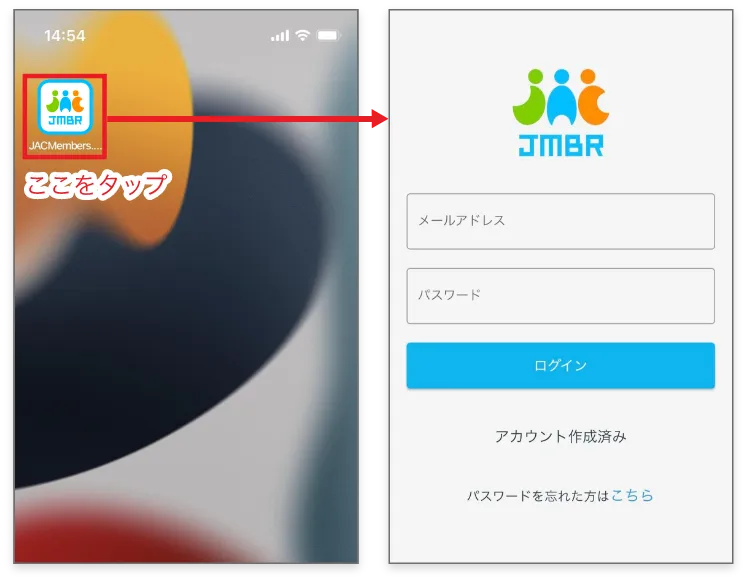
1-1. Display the login screen
Tap the "JAC Members" icon.
If you have forgotten your password, please check the link below.
1-2. Log in to "JAC Members"
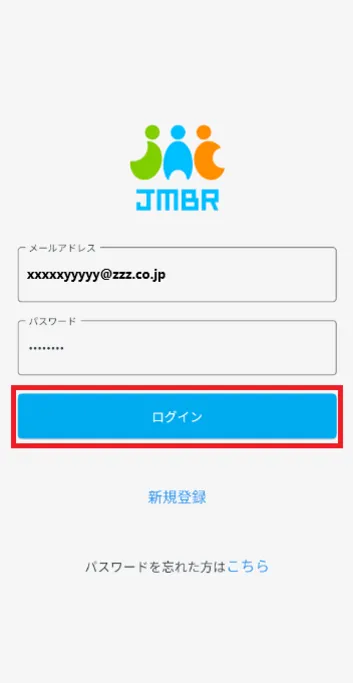
On the "JAC Members" login screen, enter your email address and password.
Tap [Login].
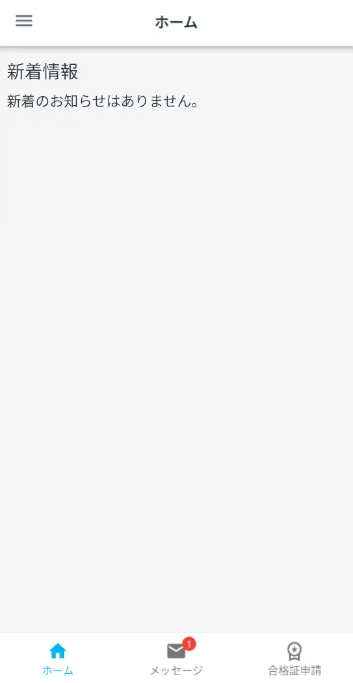
The "JAC Members" home screen will be displayed.
Step 2.
Displaying the "Message List"
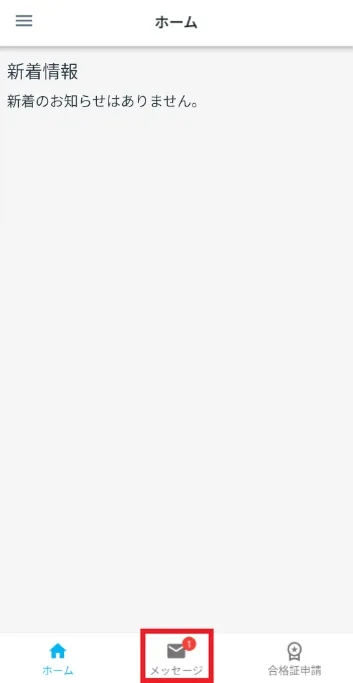
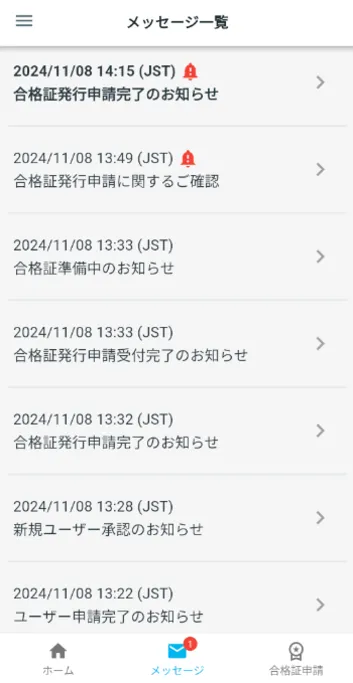
2-1. Open the message list
Tap [Messages] in the bottom menu to open the "Message List".
※Important messages will be added.
*Messages you have not read will be displayed in bold.
Step 3.
Displaying "Message details"
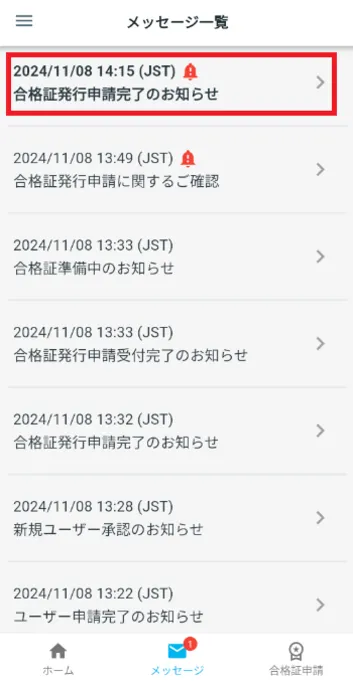
3-1. Tap the message you want to check
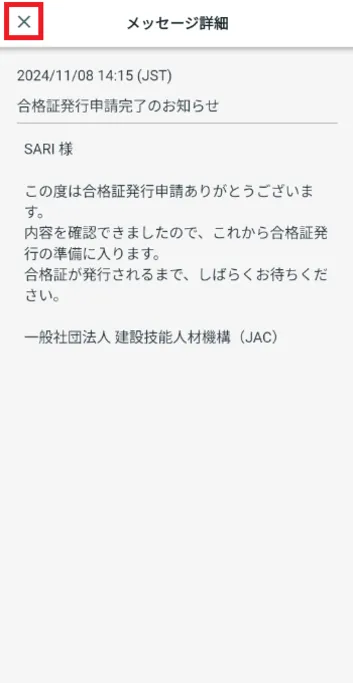
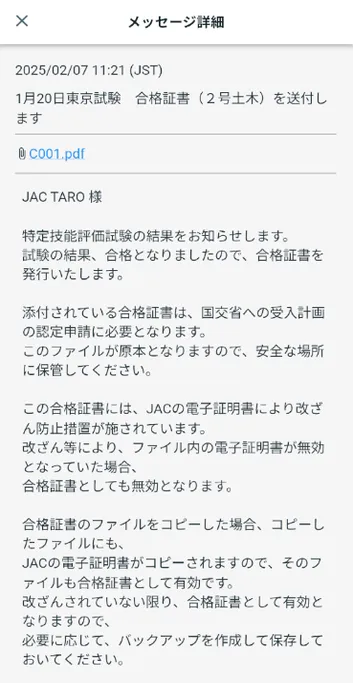
Tap the message you want to read. The text will be displayed.
If you want to return to the message list, tap the [X] in the upper left corner to close it.
Once the message has been sent correctly, [Reply] will no longer be displayed in the body of the same message.
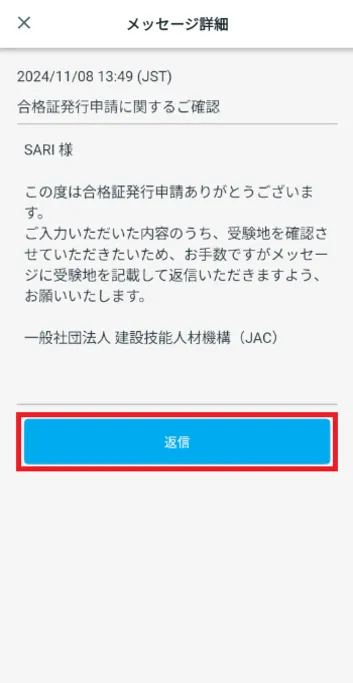
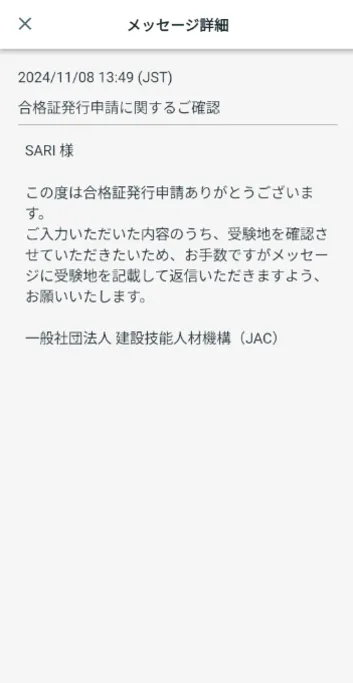
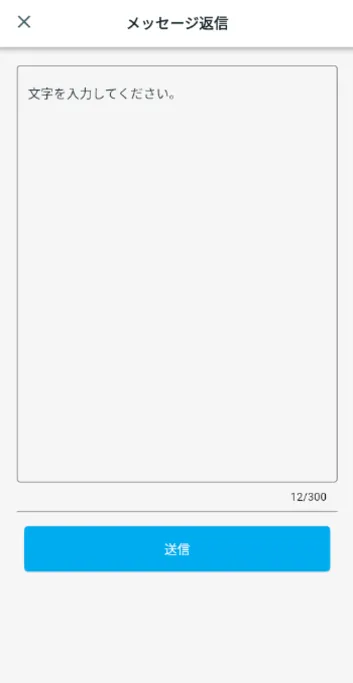
Message format: When entering text
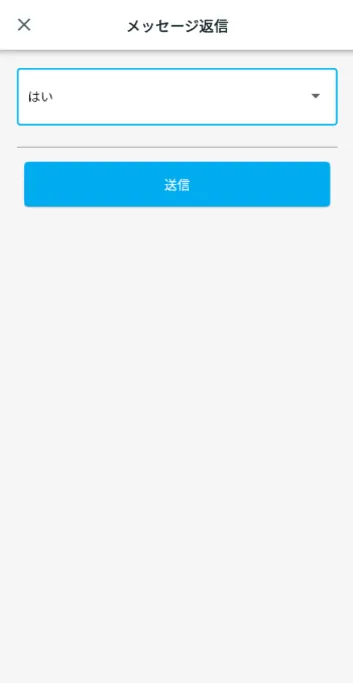
Message Format: When to Choose
Once the message has been sent correctly, [Reply] will no longer be displayed in the body of the same message.
Please check the link below for the location where the downloaded file will be saved.
If the downloaded file does not open when you click on it, please check the link below.
Frequently Asked Questions (FAQ)
- I want to install the "JAC Members" app. Where can I get it?
- I forgot the password I registered for "JAC Members."
- I got a new smartphone. Can I use it as is?
- How do I send a message to JAC using the "JAC Members" app?
- I don't have a passport. I changed my smartphone, so can I apply for a change of device?
- How do I delete my account?
- How can I get a pass certificate for exams taken outside Japan?
- How can I get a pass certificate for an exam I took in Japan?
- A "Supported version change notification" dialog box appears on the app screen. What should I do?
- What should I do if I don't know where the files I downloaded using the "JAC Members" app are saved?
- What should I do if I am unable to submit an application and a dialog box appears stating "You cannot submit a new application because you have already applied for the following."?
- What should I do if I live outside of Japan and want to apply for an assessment test in Japan?
Index
If you have any questions about how to use the app, please refer to the manual.
Account registration and basic operations
Find Japanese companies (overseas recruitment information bulletin board)
The Specified Skills Evaluation Exam Related